Working with HubSpot CMS can be smooth, until it isn’t. One small change in your custom module or theme, and suddenly, things stop behaving the way they should.
Developers often assume they’ve made a big mistake. But in most cases, it’s something minor. A missing tag. A wrong file path. A tiny syntax error in HubL that doesn’t throw any warning.
And unlike other platforms, HubSpot won’t always show you what went wrong. No loud errors. Just quiet failures.
If you’re building templates, custom modules, or working with HubDB or APIs, you’ll likely face these issues at some point. And when that happens, it helps to know where to look.
This blog is not theory. It’s a collection of real development errors in HubSpot and how to solve them without wasting hours chasing the cause.
Common HubSpot CMS errors and how to fix them
1. Common Troubleshooting Steps Before You Panic
Not every HubSpot development issue needs deep debugging. Often, the fix is simple. Below is a list of basic checks you should perform before assuming your code is broken:
Check your internet connection
Problem: HubSpot’s editor may not save or sync changes if your connection drops.
Fix: Refresh the page. Make sure you’re online and your changes are actually saved.
Clear your browser cache
Problem: Your browser may be loading an old version of your layout or module.
Fix: Clear cache or use incognito mode. Then recheck the changes.
Verify if the template/module is published
Problem: Draft files won’t reflect on the live site or even in preview mode.
Fix: Go to the Design Manager and make sure everything is published, not just saved.
Check the console in developer tools
Problem: Some JavaScript or HubL errors appear quietly in the browser’s console.
Fix: Open developer tools (F12), go to the Console tab, and look for red or warning messages.
Check your user permissions
Problem: Limited access may block editing or publishing certain templates or files.
Fix: Ask the portal admin to grant you full access, especially if you’re working in a client account.
These basic steps help catch common mistakes. Always run through them before digging into code or calling support.
2. Changes Not Being Saved in the Editor
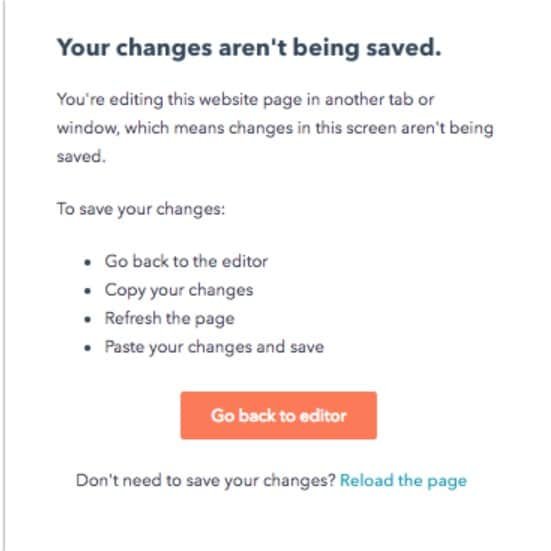
While working in the HubSpot content editor, you might get a warning that your changes aren’t being saved. This alert usually shows up when the same page or blog is open in multiple tabs or browsers. The editor stops saving to prevent content conflicts.
How to fix it
Click “Go back to editor” to return safely
Copy your unsaved changes to avoid losing them
Close any duplicate tabs or browser windows
Reload the editor to fetch the latest saved version
Paste your copied content and click Save
If the problem keeps happening, clear your browser’s cache or switch to another browser
To avoid this, stick to editing one page at a time on a single tab.
3. HubSpot API Authentication Error (401 or 403)
When trying to connect with HubSpot’s API, you may get a 401 Unauthorized or 403 Forbidden error. This usually blocks your integration or script from working as expected.
These errors are frustrating because they often appear even when your code seems fine. But the issue is almost always related to access problems.
Why it happens
The access token is expired or incorrect
The token does not have permission for the requested scope
The private app was deleted or disconnected from the portal
Headers are missing or incorrectly formatted
You’re using an API key, which is no longer supported
How to fix it
Double-check your access token. Generate a fresh one if needed
Ensure the app has the correct scopes enabled for the API you’re calling
Confirm that the app is still connected to your HubSpot portal
Always include the Authorization header: “Authorization: Bearer YOUR_ACCESS_TOKEN”
Use a tool like Postman to test the request and debug the response
Avoid using old API keys. Move to private apps with OAuth or token-based auth
When troubleshooting API issues, always start by checking the token and scopes. Most problems are solved there.
4. Content Won’t Load on a Specific Network
You visit a HubSpot-hosted website, but the page doesn’t load. It keeps spinning or times out. Strangely, others can access it just fine. You test it on your mobile with Wi-Fi off, and it opens instantly. This tells you the issue is not with the site itself but with the network you’re using.
Why it happens
This usually happens when the internal network blocks or misroutes DNS requests due to outdated CNAME records, cached entries, or firewall rules that restrict access to HubSpot domains.
How to fix it
Switch to mobile data or another Wi-Fi network to confirm it’s a network-based problem
Ask your IT team to flush the DNS cache on the local network
Make sure the DNS configuration in the internal network matches what HubSpot provides
Verify that the correct CNAME records are set in the internal DNS
Check firewall or content filter settings that might block HubSpot domains
If you’re using a custom domain, confirm it’s pointing to HubSpot’s correct records
DNS issues are tricky because they don’t always break everything. Sometimes, they block just one page or domain. That’s why testing on a separate connection helps rule things out fast.
5. CSS or JavaScript Not Loading
Your page loads, but everything looks plain. No colors, no layout, no scripts running. Buttons stop working. Carousels won’t slide. This usually means your CSS or JavaScript files are either not loading or have failed silently in the background.
This is a common issue after uploading custom files or switching templates.
How to fix it
Double-check the file paths for your CSS and JS files
If using CLI, run hs upload to push local changes to the portal
Use HubL’s {{ require_css }} and {{ require_js }} inside your modules or layouts
Check the browser’s Network tab to see if any files are blocked or failed to load
View the Console tab to catch syntax errors in JavaScript
Ensure any third-party scripts (like jQuery or Swiper) are loaded before your custom scripts
Try testing in incognito mode to bypass cached resources
Always preview your page after uploading files, and verify each resource is loading properly. A broken link or one missing tag is often all it takes to break the layout.
6. Template Updates Aren’t Reflected in Existing Content
You’ve made updates to your template, but the changes don’t show up on existing pages. Everything looks exactly the same, even after saving and publishing.
Why it happens
HubSpot only pushes changes to locked modules and global modules. Any edits made to unlocked or custom content will not update existing pages automatically.
How to fix it
In Design Manager, right-click the module and select “Prevent editing in content editors.”
Publish the template after locking the module
For global modules, changes should apply across all pages
If updates still don’t reflect, try making a small edit (like adding a space) and publishing again
This forces a re-render, which often resolves the issue
To keep future content consistent, it’s better to use locked or global modules for sections you don’t want editors to modify.
7. Troubleshooting Data Sync Issues
When HubSpot fails to sync with external tools or CRMs, the result is often missing data, outdated records, or broken workflows. These problems can quietly affect reports, emails, and task automation.
Why it happens
Field mappings don’t align properly
Duplicate records are causing conflicts
API rate limits are exceeded during bulk sync
Unstable internet interrupts data transfer
How to fix it
Open the integration settings and review field mappings one by one
Match data types between systems and make sure all required fields are connected
Use HubSpot’s Manage Duplicates tool to clean up any conflicting records
Check your API usage under the developer settings. Space out sync jobs or request a higher limit if needed
Monitor the sync status and logs from HubSpot’s integration page to spot failed records
Use a reliable internet connection while syncing large volumes of data to avoid timeout or partial updates
8. Troubleshooting Email and Marketing Automation Issues
Emails aren’t reaching users. Workflows stop midway. Lists are missing key contacts. These issues can quietly damage your campaigns if not resolved quickly.
Why it happens
Emails are marked as spam or bounce due to invalid addresses
Your sending domain lacks authentication, reducing trust
Workflow triggers are set up incorrectly or are missing
Segmentation filters don’t match the intended audience
Some lists are outdated and no longer updated automatically
How to fix it
Check your email sending domain. Make sure SPF, DKIM, and DMARC are configured properly
Clean your contact list regularly to remove invalid or inactive addresses
Open your workflows and test each trigger to confirm the logic is correct
Fix errors in workflow steps that cause them to pause or fail
Review smart list filters to make sure they reflect the right criteria
Monitor engagement reports and remove users who consistently don’t interact with your emails
Final Take
Most HubSpot development errors aren’t complex, but they do waste time when left unchecked. From broken layouts to API failures, the smallest misstep can affect the entire site.
If you don’t want to deal with these kinds of problems, it’s better to have a reliable team behind your setup. Mistakes in templates or automation can quietly hurt performance over time.
At Stellites.com, our developers can help you build your website from the ground up or handle ongoing maintenance. Whether you need custom modules or monthly support, we’re here to keep your site running smoothly.
FAQs
What should I check first when a HubSpot page breaks after a theme update?
Start with the module structure. Recheck require_css or require_js usage, and clear your browser cache. Even a missing comma in HubL can silently break the whole page.
Can multiple developers work in the HubSpot Design Manager at once?
Yes, but avoid editing the same file in different tabs. It may trigger version conflicts or overwrite unsaved changes. Use Git + CLI for better collaboration control.
Why do template changes not apply to older pages in HubSpot?
Because non-global or unlocked modules do not auto-update. Use global modules or lock modules in templates if you want consistent updates across all pages without manual edits.
How do I make sure my HubSpot forms work on every network?
Test forms on mobile data and different browsers. If they don’t load on specific Wi-Fi networks, check DNS settings or firewall rules blocking HubSpot’s assets or endpoints.
Can I avoid these HubSpot errors without hiring a full-time developer?
Absolutely. At Stellites.com, our expert developers can build or maintain your HubSpot website without long-term hiring. Whether it’s a one-time fix or ongoing help, we’ve got you covered.